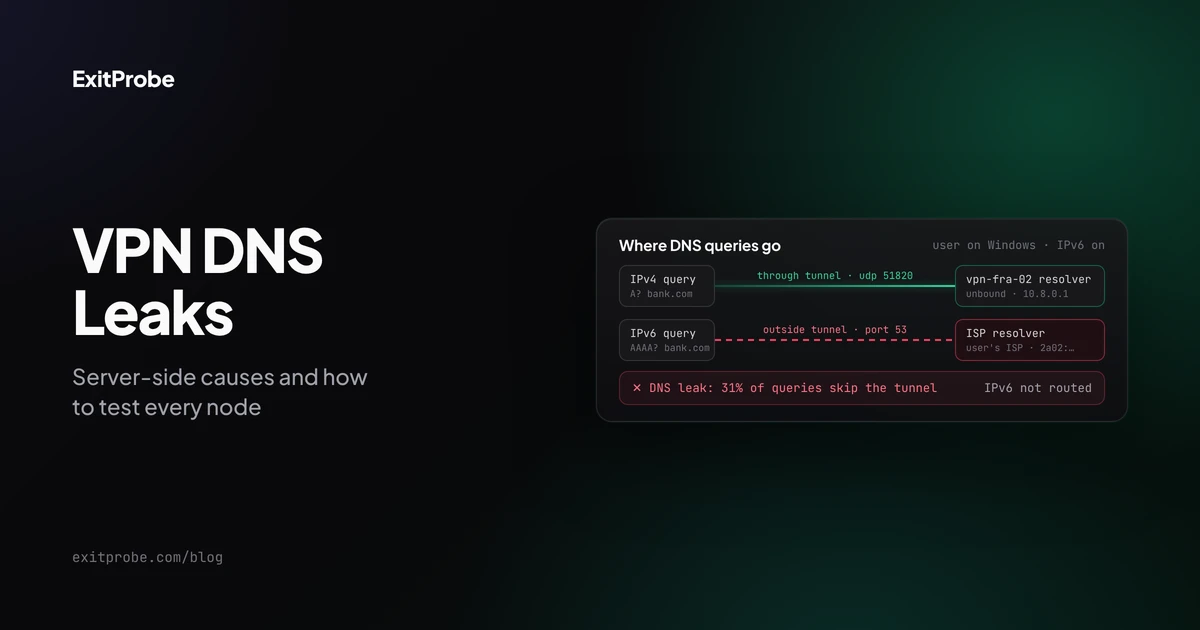
A DNS leak means a user's DNS lookups go somewhere other than where you intended, usually to their own ISP, while the rest of their traffic goes through your VPN. The connection still works, so nobody notices. But the ISP can now see every site the user visits, and the user is relying on you for exactly that privacy.
Most DNS leak guides are written for VPN users: "visit a test site, see if your ISP shows up". This one is for the people running the servers. It covers why leaks happen, which ones come from your server and app setup, and how to test every node automatically instead of one by one.
What a DNS leak looks like
When the tunnel works as intended:
- The user's device sends DNS queries into the tunnel.
- Your server, or a resolver you control, answers them.
- The outside world sees queries coming from your infrastructure, not from the user.
A leak is any case where step 1 doesn't happen, so queries leave the device outside the tunnel and go to the ISP's resolver or another resolver on the local network. There's a second, quieter problem too: queries go through the tunnel, but your server forwards them to a resolver you didn't intend, in a different country or run by a third party.
| Type | What happens | Who sees the queries |
|---|---|---|
| Client-side leak | Queries skip the tunnel | The user's ISP or local network |
| IPv6 leak | IPv4 goes through the tunnel, IPv6 queries don't | The user's ISP |
| Reconnect leak | Queries leak while the tunnel reconnects | The user's ISP, briefly |
| Upstream mismatch | Queries go through the tunnel, then to a resolver you didn't intend | A third-party resolver, often in another region |
Why VPN servers and apps leak DNS
1. The client never gets told which DNS to use
The tunnel can be up while the device keeps using its old DNS server. The usual reasons:
- WireGuard: the client config has no
DNS =line, so the system keeps its existing resolver. - OpenVPN on Linux: the server pushes
dhcp-option DNS, but nothing on the client applies it. Linux needs a helper script such asupdate-resolv-conforupdate-systemd-resolvedfor pushed DNS to take effect. - Custom apps: the app brings up the tunnel but doesn't set the system DNS on some platforms.
Fix it in the configs you hand out: always include DNS in WireGuard configs, and make sure your apps set DNS on every platform they support.
2. Windows asks every network adapter
Windows can send DNS queries to the resolvers of all network adapters at once and use whichever answers first. Even with the VPN's DNS set, some queries go out through the normal network adapter.
For OpenVPN, the server can push block-outside-dns, which blocks DNS on other adapters while the tunnel is up (Windows clients only):
push "block-outside-dns"
With WireGuard's official Windows client, a config that routes all traffic (AllowedIPs = 0.0.0.0/0, ::/0) turns on the "Block untunneled traffic" option, which also stops DNS from going out through other adapters. If your app uses its own tunnel code, test this on Windows specifically.
3. IPv6 isn't in the tunnel
If the tunnel only carries IPv4 and the user's network has IPv6, the device can send DNS queries and other traffic over IPv6 directly. This is one of the most common leaks, and it's an IP leak as well as a DNS leak.
Either route IPv6 through the tunnel too, for example AllowedIPs = 0.0.0.0/0, ::/0 in WireGuard with IPv6 set up on the server, or block IPv6 on the client while the VPN is connected. Leaving it unhandled isn't an option.
4. The server's resolver can't be reached through the tunnel
If you point clients at a resolver on the server, such as 10.8.0.1, it has to actually listen on the tunnel interface and be allowed by the firewall. A resolver bound only to 127.0.0.1, or a firewall that blocks port 53 on the tunnel, makes lookups fail. Some systems then quietly fall back to another resolver outside the tunnel.
Check on the server:
ss -lunp | grep ':53 '
The resolver should be listening on the tunnel address, not only on localhost.
5. The server forwards queries somewhere you didn't plan
Queries can go through the tunnel correctly and still end up somewhere unexpected. A server with default settings often forwards DNS to the hosting provider's resolver, or to a public resolver set by whoever built the image.
This causes two problems:
- Privacy: a third party sees all your users' queries, tied to your server's IP.
- Wrong region: if the resolver is in another country, users get content and CDN servers for that country, even though their exit IP is somewhere else.
Run your own resolver, such as Unbound, on each node or in each region, and know where every node forwards to. Leak test sites will show the resolver's IP and location, so a mismatch also makes your service look leaky to users who test it.
6. Queries leak during reconnects
When the tunnel drops and reconnects, after a network change or a server restart, there's a window where the device has no tunnel. Without a kill switch, DNS and other traffic go out through the normal connection. A kill switch that blocks all traffic outside the tunnel until it's back up closes this gap. That's mostly a job for your apps.
How to test for DNS leaks
The quick manual test
Connect to a server and open a DNS leak test site such as dnsleaktest.com or browserleaks.com/dns. The resolvers listed should belong to you or to the resolver you chose, in the expected region. If the user's ISP appears, it's a leak.
This works for one server on one device. It doesn't scale to a fleet.
From the command line
These checks work in scripts and on servers without a browser.
See which resolver IP is asking on your behalf:
dig +short TXT o-o.myaddr.l.google.com
The answer shows the IP address that queried Google's name servers, which is the address of the resolver your query went through. Compare it with your server's IP or your resolver's IP. Akamai offers a similar check:
dig +short whoami.akamai.net
Then check the exit IP for normal traffic:
curl -s https://ifconfig.me
Watch the wire
The most direct test is to look for DNS traffic outside the tunnel. On a Linux client with the VPN connected, watch the physical interface, not the tunnel:
sudo tcpdump -ni eth0 port 53
Browse for a minute. With no leak, this stays empty, because all DNS goes inside the encrypted tunnel. Any line here is a query leaving outside the tunnel. Add or port 853 to also catch DNS over TLS.
Testing every node automatically
Manual tests don't catch the problems that matter most for a provider: one node built from an old image that forwards to the wrong resolver, a firewall change that breaks the resolver on a few servers, or an app update that stops setting DNS on one platform.
An automated leak check, per node, should:
- Connect with a real client using the same config your users get.
- Check the exit IP against the expected IP for that node.
- Check which resolver answers DNS, and compare it with the expected resolver for that node or region.
- Run on a schedule, from more than one region, and alert when anything changes.
Keep a simple table of what each node should look like: exit IP, resolver IP, resolver location. Most leaks show up as a difference from that table.
ExitProbe does this as part of every check. Each check brings up a real tunnel to the node from edge probes in multiple regions, verifies the handshake, exit IP and latency, and runs leak detection. If a node starts leaking after a change, you get an alert for that node instead of a report from a user who ran a leak test.
If DNS fails completely rather than leaking, see why ping works but your VPN doesn't. For the full picture of what to monitor, see our complete guide to VPN server monitoring.
Frequently asked questions
What causes a VPN DNS leak?
The most common causes are a client that never gets the VPN's DNS settings, Windows sending queries to every network adapter, IPv6 traffic that isn't routed through the tunnel, and queries leaking while the tunnel reconnects. On the server side, a resolver that isn't reachable through the tunnel, or one that forwards to an unintended upstream, causes similar problems.
How do I check for a DNS leak from the command line?
With the VPN connected, run dig +short TXT o-o.myaddr.l.google.com to see which resolver IP your queries come from, and sudo tcpdump -ni eth0 port 53 on the physical interface to see if any DNS traffic leaves outside the tunnel.
Does WireGuard leak DNS?
WireGuard doesn't handle DNS itself. If the client config has no DNS = line, or IPv6 isn't routed through the tunnel, the system keeps using its normal resolver and queries can leak. With DNS set and all traffic routed, the official clients keep DNS in the tunnel.
What does OpenVPN's block-outside-dns do?
It's a Windows-only option that blocks DNS queries on network adapters other than the VPN while the tunnel is up. It stops Windows from sending queries to every adapter at once. Push it from the server with push "block-outside-dns".
Catch DNS leaks on every node, not just the one you tested. Start free with ExitProbe and run real tunnel checks with leak detection.
Add a server as a monitor and ExitProbe runs the full session from outside, then verifies the exit IP.